How to Sync WordPress Staging to Production Without Losing Orders
By Jon B.· Updated
Short answer
To sync staging to production without losing orders, never push the whole database to a live store. A full push replaces production's tables with an older copy, so newer orders disappear. Deploy only the pages and products you changed, and leave order, customer, and subscription tables untouched.
If you run a live WooCommerce store, you've either lived this nightmare or you're one deploy away from it: you clone production to staging, spend a few days building out a new page, push staging back to live — and every order, customer, and subscription created during those few days is gone.
This isn't a rare edge case. It's the default behavior of whole-site migration, and it catches even experienced developers. Here's the mechanism, and the workflow that sidesteps it entirely.
Why do whole-site pushes destroy live orders?
WooCommerce stores orders, customers, and subscriptions in the database — in core tables and, on modern installs, in dedicated High-Performance Order Storage tables. When you clone production to staging, you snapshot those tables at that moment in time.
While you work on staging, production keeps taking real orders. Then you push staging back to live. A full-site migration overwrites the production database with staging's copy — the copy that was frozen days ago, before any of those new orders existed. The overwrite doesn't merge; it replaces. Those orders are simply not in the data you pushed, so they're erased.
Is excluding the order tables safe enough?
The common mitigation is to exclude WooCommerce tables from the push. It works — when you remember to do it, and when you correctly identify every relevant table across core orders, HPOS, sessions, and any extension that writes its own tables.
The problem is that safety now depends on a manual checklist executed perfectly under deadline pressure. Miss one table, or run the push from a saved profile that didn't include the exclusion, and you're back to lost data. Safe-by-exclusion means one mistake away from unsafe.
What is the safe way to deploy to a live store?
The reliable fix is to stop pushing databases altogether for routine updates. Most staging work is content: a new landing page, an updated product description, a redesigned homepage. None of that requires touching order tables.
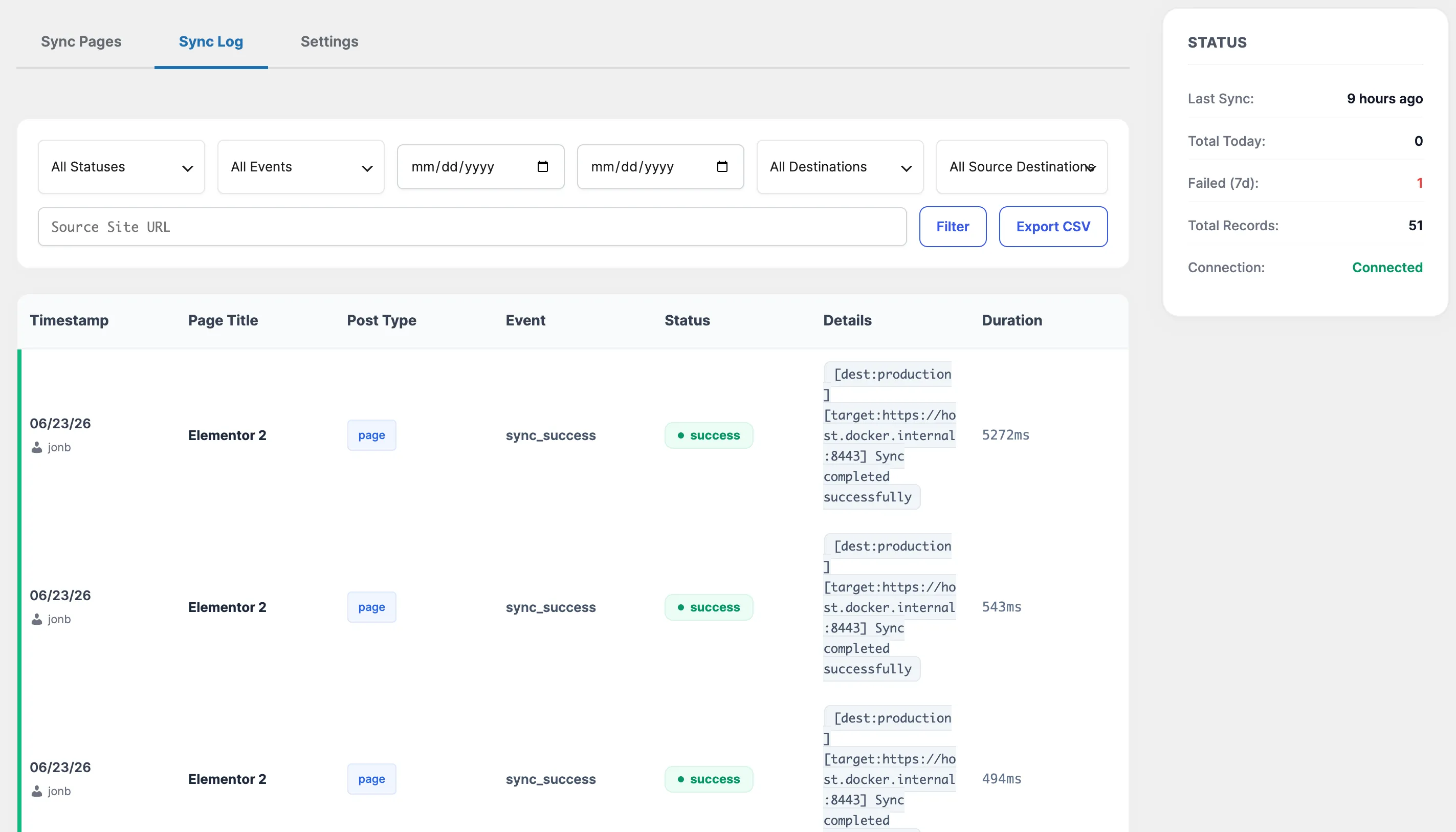
With a page-level sync tool, you deploy only the specific posts and pages you changed. EZ Page Sync pushes the selected content and its metadata directly to production and never issues a table-level write to anything you didn't select — so order, customer, and subscription tables are structurally out of reach during a content sync.
- 1Keep order data where it belongs: never push whole databases to a live store for content changes.
- 2Build and preview your page changes on staging as usual.
- 3Use a page-level sync to push only the pages, posts, or products you edited.
- 4Rely on the automatic pre-sync snapshot as a safety net for the content you did push.
- 5Reserve full-site tools for genuine migrations (new host, new domain) — not day-to-day editorial updates.
Guide FAQ
Frequently Asked Questions
Why did my WooCommerce orders disappear after a staging push?
A whole-site push overwrote your production database with a staging copy that was cloned before those orders existed. The overwrite replaces data rather than merging it, so orders created in between are lost.
Is it ever safe to push a full database to a live store?
Only if the live site has taken no orders, comments, or registrations since the clone — which is rarely true for an active store. For routine content updates, deploy at the page level instead.
Does EZ Page Sync touch WooCommerce order tables?
No. A content sync writes only the specific posts and metadata you select, so order, customer, and subscription tables are never modified during the push.