On this page
Introduction
EZ Page Sync pushes page and post edits from a staging WordPress site to a production site — safely, with cryptographically signed requests, automatic pre-sync snapshots, and rollback if anything goes wrong. No database migration, no full-site export, no manual copy/paste.
The plugin is installed on both sites, and each site is assigned a role:
| Role | Typical site | What it does |
|---|---|---|
| Sender | Staging | Collects the page data, signs the request, and pushes it to the Receiver. |
| Receiver | Production | Verifies the request signature, validates the payload, and applies it to the database. |
Sync payloads travel directly between your two sites over an HMAC-signed HTTPS connection. Your content never passes through EZ Page Sync's servers or any third party.
A single site can also run both roles at once Premium — useful for relay chains like staging → pre-prod → production.
Requirements
- WordPress 6.9 or newer, on both sites
- PHP 8.1 or newer
- MySQL 5.7+ or MariaDB 10.3+
- HTTPS on both sites — plain-HTTP sync requests are rejected
- The same EZ Page Sync plugin installed and activated on both sites
Advanced Custom Fields is optional and detected automatically — if you sync ACF fields, ACF must be active on both ends. WordPress Multisite is not currently supported.
Installation
- Download the plugin zip (or grab your Premium copy from your Freemius account email).
- In wp-admin, go to Plugins → Add New → Upload Plugin, choose the zip, and click Install Now. Alternatively, unzip the
ez-page-syncfolder into/wp-content/plugins/. - Click Activate.
- Repeat on the second site — the plugin must be active on both staging and production.
After activation, EZ Page Sync appears as its own item in the wp-admin sidebar menu. On first activation you'll see an optional opt-in screen for sharing basic diagnostic data — skipping it doesn't affect any functionality.
Quick Start: Connect Two Sites
EZ Page Sync uses one shared secret key between two sites. Follow these steps once and you're ready to sync.
- Install and activate EZ Page Sync on both the staging site and the production site.
- On the Settings tab of each site, set the Plugin Role: choose Sender on staging and Receiver on production.
- Generate an API Secret Key on one site (Settings tab →Regenerate Key), then copy that exact value into the API Secret Key field on the other site. Both sites must hold the identical key — it authenticates every sync request.
- On the Sender, go to Settings → Destinations and add a row with the Receiver's full site URL (e.g.
https://example.com). Adding more than one destination is a Premium feature. - Optionally, on the Receiver, restrict which IP addresses may send sync requests Premium, and list any trusted reverse-proxy IPs so client IPs are read correctly behind a load balancer.
- On the Sender's Settings tab, click Test Connection to confirm the two sites can communicate using the shared key.
- Go to the Sender's Sync Pages tab and use Preview or Sync on any page.
- To sync in the opposite direction, swap the Plugin Role on each site and add a Destination on the new Sender. The shared key already works both ways.
Regenerating the key invalidates existing connections immediately. If you click Regenerate Key later, update the other site right away or every sync will fail with an invalid-signature error.
The Admin Dashboard
The EZ Page Sync menu in wp-admin opens a tabbed dashboard. Which tabs you see depends on the site's role.
Sync Pages Sender
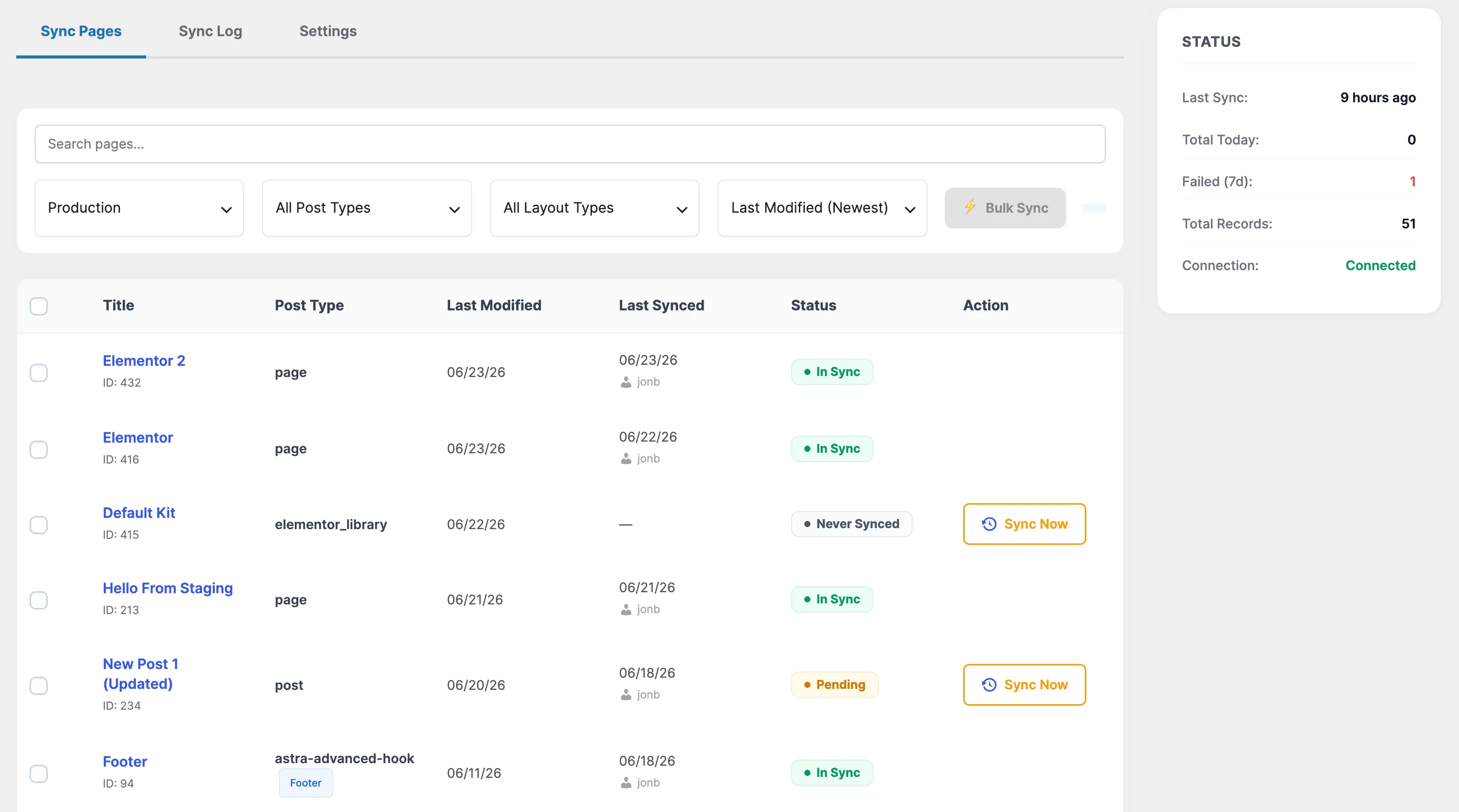
A searchable, filterable list of every syncable page and post. For each row you get a sync-status badge (In Sync, Pending, Sync Failed, or Never Synced), the last-synced time, and per-page Preview and Sync buttons. You can filter by post type, sort by modified/synced date or title, and select multiple pages for bulk sync Premium.
On the Free tier, pages built with Elementor show a Premium lock badge instead of sync controls — Elementor layouts live almost entirely in Elementor's own data, so syncing only the post content would publish a broken page.
Sync Log
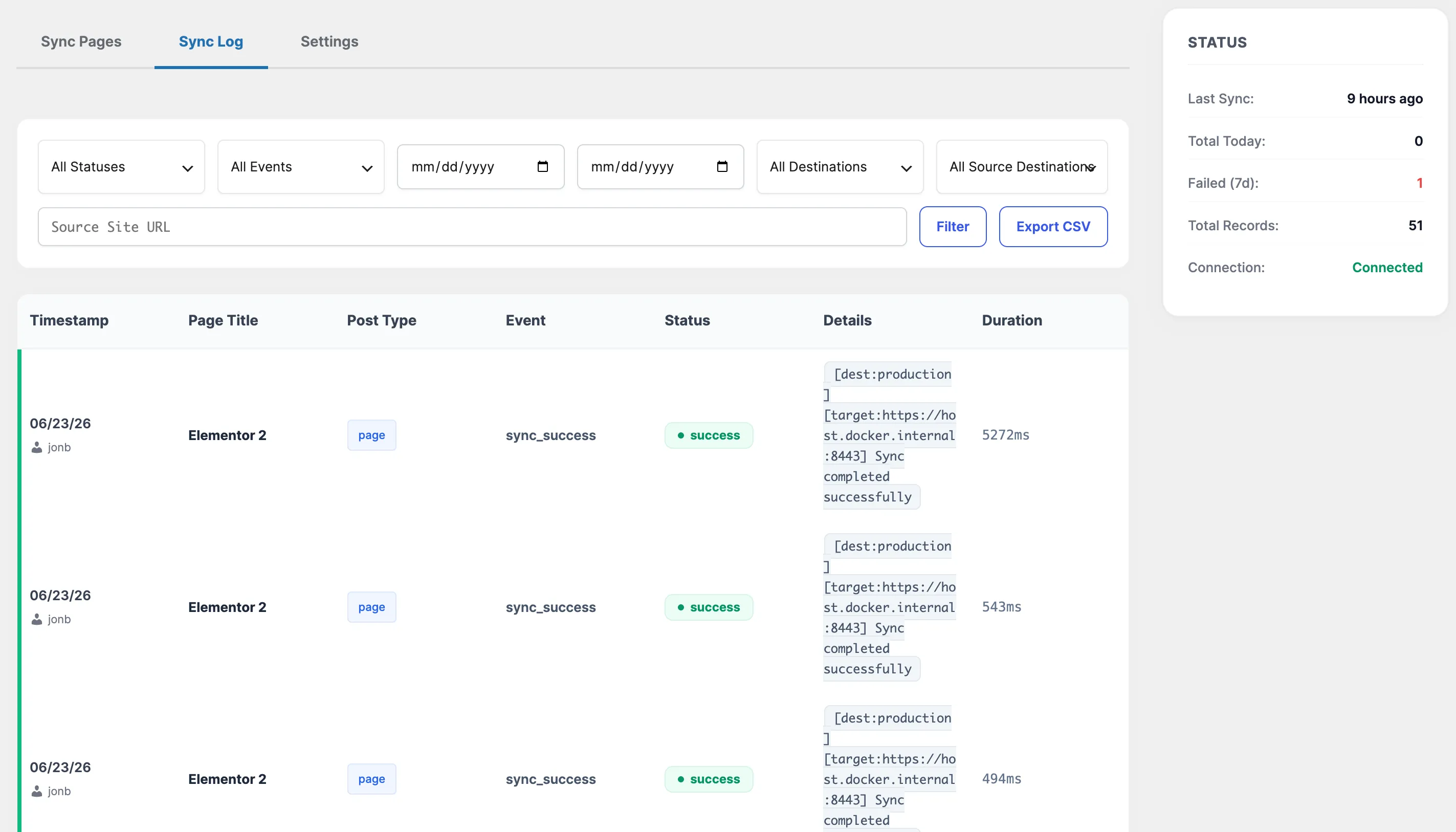
A paginated audit log of every sync event — success, failure, warnings, and rollbacks — filterable by status, date, and post type. The Free tier keeps the most recent 50 entries; extended retention and CSV export are Premium.
Rollback Manager ReceiverPremium
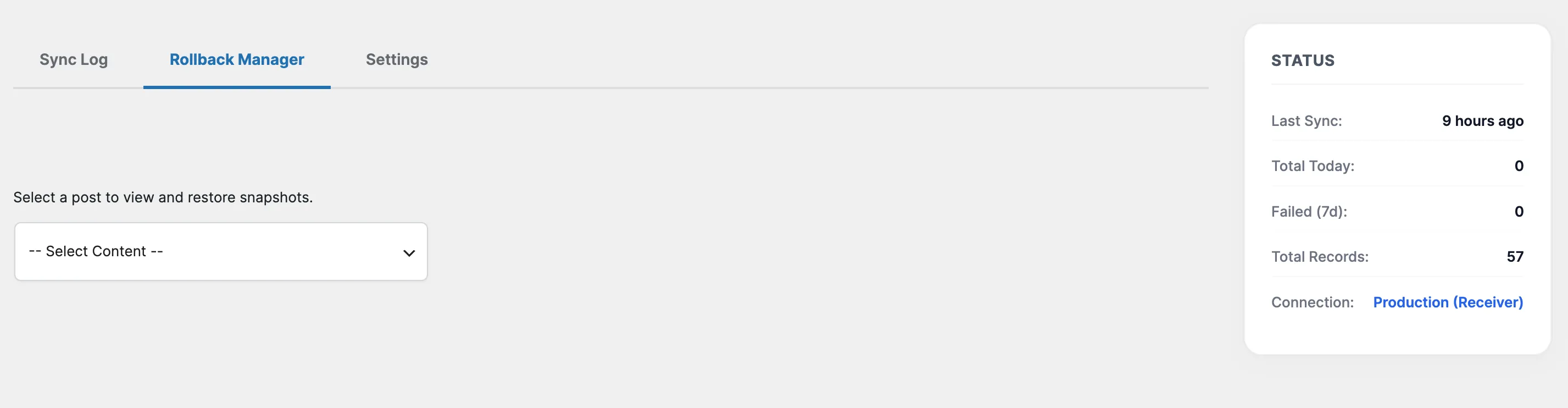
Lists the pre-sync snapshots captured on this site, with a one-click Restore (with confirmation) for each. See Snapshots & Rollback for how snapshots work — automatic rollback on failure works on every tier; this tab adds manual, on-demand restores.
Settings
All configuration in one place: role, destinations, the API Secret Key, Test Connection, and the sync toggles documented in the Settings Reference below.
Help & FAQ
A built-in copy of the connection walkthrough plus answers to common questions — handy when you're inside wp-admin and don't want to leave the dashboard.
Bonus: the editor metabox
You don't have to visit the dashboard to sync. Every syncable page and post gets an EZ Page Sync metabox in the editor sidebar showing its current sync status and last-synced time, with a sync-mode selector (Full Sync / Content Only) and Sync and Dry Run buttons. Edit, hit Sync, done.
Sync Modes
| Mode | What it does | When to use it |
|---|---|---|
| Full Sync | Syncs everything covered in What Gets Synced — content, meta, media, taxonomies, integrations. | The default. Publishing a finished page. |
| Content Only | Just the post body, title, and slug. | Copy tweaks where nothing structural changed. |
| Preview | Shows the match confidence and any warnings (e.g. a title mismatch on production) without writing anything. | Checking which production post a sync will hit before you commit. |
| Dry Run | Runs the entire pipeline — validation, media, meta — without a single database write, and returns a diff summary. | Verifying a risky sync end-to-end first. |
| Bulk SyncPremium | Pushes multiple selected pages in one operation. | Releasing a batch of changes at once. |
| Force Sync | Explicitly overrides an ambiguous-match warning after you've reviewed it. Available on every tier. | You've confirmed via Preview that the flagged target is correct. |
Destructive status changes (for example, a sync that would unpublish a live production page) are held back with an explicit warning until you confirm them with a force sync.
What Gets Synced
- Post content, title, slug, status, and dates
- All custom post meta (custom fields) Premium
- ACF fields, matched by key with a name-based fallback Premium
- Elementor layouts, including images and Global Widget / Template references remapped to production IDs Premium
- Astra theme meta Premium
- Yoast SEO meta fields Premium
- Taxonomy assignments across all registered taxonomies Premium
- Featured images and inline media attachments Premium
- URL rewriting — staging URLs found in content and meta are rewritten to production URLs on arrival
How media is handled
Media files are embedded in the sync payload itself (base64-encoded), so the production site never needs filesystem or FTP access to staging. On arrival, each file is matched against the production media library by filename: existing attachments are reused, and the Overwrite Existing Media setting decides whether a name collision replaces the file or keeps the production copy. After upload, attachment metadata and image sizes are regenerated and content URLs are rewritten to point at production.
What is never synced
WordPress housekeeping meta is excluded automatically:_edit_lock, _edit_last, _wp_old_slug, _wp_old_date, _pingme, _encloseme, and the plugin's own internal sync-tracking keys. You can add your own exclusion keys in Settings.
After a successful sync
The plugin purges the synced page from common page caches automatically — WP Super Cache, W3 Total Cache, LiteSpeed Cache, and WP Rocket are all supported, with WordPress's own post-cache flush as the fallback. If a Notify Email is configured, a summary email is sent on completion (success or failure).
Settings Reference
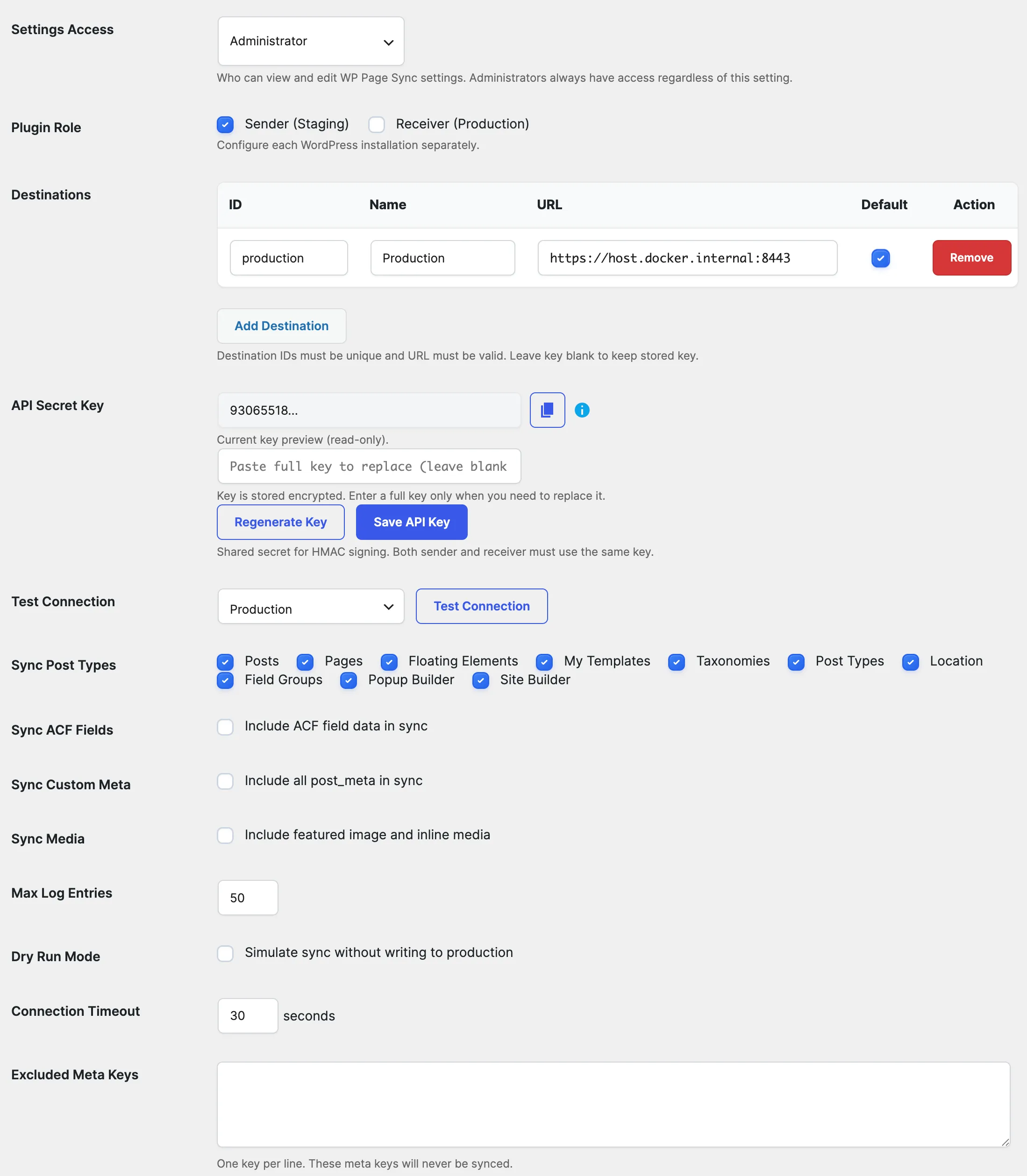
| Setting | Applies to | Description |
|---|---|---|
| Plugin Role | Both | Sender (staging) or Receiver (production). Running both roles at once is Premium. |
| Destinations | Sender | The Receiver site URL(s) to push to. More than one destination is Premium. |
| API Secret Key | Both | Auto-generated shared secret that signs every request. Must be identical on both sites. Stored encrypted (AES-256-GCM). |
| Allowed Sender IPs | Receiver | Comma-separated IP allowlist, CIDR supported (IPv4 + IPv6). Editing is Premium; a configured list keeps being enforced even if a license lapses. |
| Trusted Proxy IPs | Receiver | Reverse proxies / load balancers whose forwarded-IP headers should be trusted when resolving the sender's real IP. |
| Sync Post Types | Both | Which post types are syncable. Free covers page andpost; custom post types are Premium. |
| Sync ACF Fields | Both | Include ACF field values in syncs. Premium |
| Sync Custom Meta | Both | Include all other custom post meta. Premium |
| Sync Media | Both | Transfer featured images and inline attachments. Premium |
| Overwrite Existing Media | Both | On filename collision, replace the production file instead of keeping it. |
| Auto Rollback on Failure | Receiver | Restore the pre-sync snapshot automatically if a sync fails. On by default. |
| Settings Access | Both | Restrict who can open the plugin settings to a specific role or user. Premium |
| Max Log Entries | Both | Sync Log retention. Capped at 50 on Free; higher/unlimited is Premium. |
| Enable Dry Run Mode | Sender | Expose the Dry Run action on syncs. |
| Notify Email | Both | Address that receives the per-sync summary email. |
| Connection Timeout | Sender | Seconds to wait for the Receiver before marking the sync failed. Default 30. |
Snapshots & Rollback
Before every sync, the Receiver captures a snapshot of the target page's current state. Rollback then works two ways:
- Automatic — if a sync fails partway through (a database write error, an invalid payload), the page is restored from the snapshot immediately, so production is never left half-updated. Controlled by theAuto Rollback on Failure setting, on by default, available on every tier.
- ManualPremium — the Rollback Manager tab lists stored snapshots and restores any of them with one click, even days after a "successful" sync you've changed your mind about.
Up to 5 snapshots are kept per post. Snapshots expire after 30 days on the Free tier (extended retention is Premium). Rolling back never deletes media files — only post data is restored.
Security Model
Every sync request is authenticated and validated before a single byte touches the production database:
- HMAC-SHA256 request signing — the signature covers the post ID, timestamp, nonce, and a hash of the full payload, so a request can't be forged or tampered with in transit.
- Replay protection — each request carries a one-time nonce (10-minute TTL, rejected if reused) and its timestamp must fall within a ±5-minute window.
- HTTPS enforced — plain-HTTP requests are rejected outright.
- Rate limiting — the Receiver accepts at most 60 sync requests per hour per sender IP (health-check pings don't count).
- IP allowlistPremium — restrict the Receiver to known sender IPs, with CIDR ranges, IPv4 and IPv6. Forwarded-IP headers are only trusted from your configured Trusted Proxy IPs.
- Encrypted key storage — the API Secret Key is stored with AES-256-GCM authenticated encryption, not in plaintext.
- WordPress capability checks — all admin actions require the appropriate capabilities and are nonce-protected.
And to repeat the most important property: sync traffic flows directly between your own two sites. There is no relay server, and no third party ever sees your content.
For the plain-language version of this model, see the Security page.
Troubleshooting & Error Codes
Common issues
- "Invalid HMAC signature" (EZ_PS_001) — the API Secret Key differs between the two sites. Copy the exact key from one Settings tab to the other. This is also what you'll see if one side regenerated the key and the other wasn't updated.
- "Timestamp out of window" (EZ_PS_002) — the server clocks disagree by more than 5 minutes. Fix the system time (usually NTP) on the drifting host.
- "Rate limit exceeded" (EZ_PS_005) — the Receiver allows 60 sync requests per hour per sender IP. Wait for the window shown in the error to reset, or space out bulk syncs.
- "HTTPS required" (EZ_PS_013) — one of the sites is being reached over plain HTTP. Check the destination URL starts with
https://and that SSL is valid on both ends. - "Sync already in progress" (EZ_PS_CONCURRENT_SYNC, HTTP 429) — another sync for the same post is mid-flight on the Receiver. This is a transient lock; retry after a few seconds.
- Sync button missing on a page — if the page was built with Elementor on the Free tier, it's Premium-locked (see Sync Pages). Otherwise check the post type is enabled under Sync Post Types in Settings.
Error code reference
Every failure is logged in the Sync Log with one of these codes:
| Code | Meaning |
|---|---|
EZ_PS_001 | Invalid HMAC signature — key mismatch or secret not configured |
EZ_PS_002 | Timestamp out of window — server clock drift over ±5 minutes |
EZ_PS_003 | Nonce already used — replayed request rejected |
EZ_PS_004 | Sender IP could not be determined or is not whitelisted on the Receiver |
EZ_PS_005 | Rate limit exceeded (60 requests/hour/IP) |
EZ_PS_006 | Invalid payload — request body is not valid JSON or fails schema |
EZ_PS_007 | Post not found on the Receiver |
EZ_PS_008 | Internal receiver error — check the sync log for details |
EZ_PS_009 | Media sync failed |
EZ_PS_010 | Snapshot creation failed on the Receiver |
EZ_PS_011 | Rollback failed — missing or invalid snapshot_key |
EZ_PS_012 | Sync lock active — another sync is running for this page |
EZ_PS_013 | HTTPS required — plain-HTTP request rejected |
EZ_PS_014 | ACF not active on the Receiver — ACF sync skipped with a warning |
EZ_PS_015 | Partial sync — content applied but media failed |
EZ_PS_016 | Production post is linked to a different staging site |
EZ_PS_018 | Destructive status change requires an explicit force sync |
EZ_PS_019 | Post type missing from the payload |
EZ_PS_020 | Post type not allowed or not registered on the Receiver |
EZ_PS_022 | Concurrent edit detected on production during sync |
Failed syncs never leave production half-updated: any database write failure triggers an automatic rollback to the pre-sync snapshot (when Auto Rollback is enabled, which is the default).
Deactivation & Uninstall
Deactivating the plugin is non-destructive: all settings, the sync log, and stored snapshots are preserved, so you can reactivate and pick up where you left off.
Deleting the plugin from the Plugins screen removes everything it created — its options, the sync log table, and its per-post sync metadata. No other WordPress data is touched, and no synced content is ever removed from production.
Ready to sync?
Install EZ Page Sync on your staging and production sites and push your first page in minutes.